Create your first board
This lesson uses an Empty Board. You will describe its cells with an asset, create a live board
through GridBoardAuthoring, and display it with a view and renderer. The next lesson adds a
structure and a small controller that requests placement.
For a ready-made exercise, see the optional Place and Move example.
Outcome
Create an 8 by 8 square board in Unity and see all 64 cells in the Scene view.
Steps
Create an empty scene and an
Assets/FirstBoardfolder.Select Tools > Lost Lily > Grid Toolkit > Create Grid Board....
Enter these values:
Field Value Name First BoardStarting Point Empty Board Topology Square Width 8Height 8Renderer Setup World 3D Cell Size 1Asset Folder Assets/FirstBoardAdvanced > Create Starter Structure Disabled Select Create.
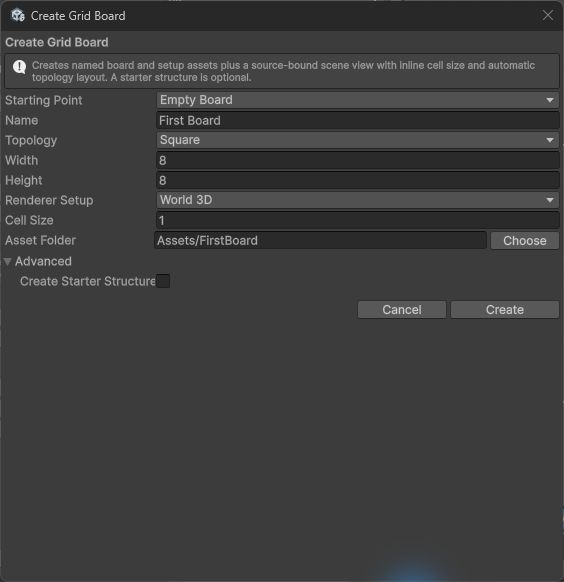
The starter structure stays disabled so the next step can show the normal asset workflow for authoring a reusable structure, assigning its visual, and connecting its library.
- Select
Assets/FirstBoard/First Board Board.asset. In Board Summary, confirmCells: 64. - Enter Play Mode and select the generated
First Boardscene object. - In GridBoardAuthoring, confirm
State ready at revision 0.
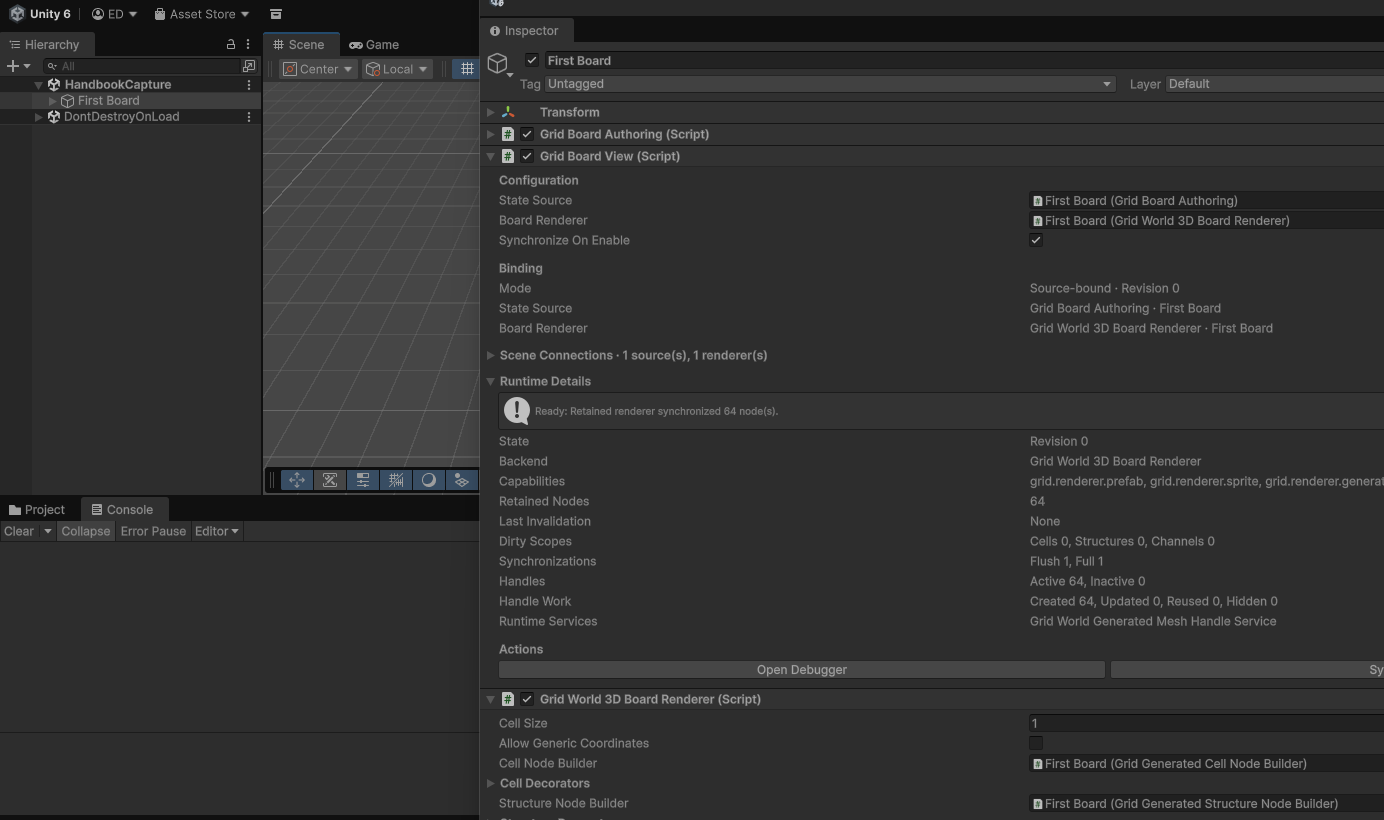
What you should see
- The board asset reports 64 cells.
- The authoring component reports a ready state at revision
0. - The Scene view shows an 8 by 8 field of cells.
- The connected GridBoardView reports a ready renderer.
The Scene view is the reliable visual checkpoint. A Game view camera and lighting are optional. The detailed list of generated assets and components is explained in Understand your board.
Troubleshooting
| Symptom | Check |
|---|---|
| The wizard rejects the folder | Select an existing folder inside Assets. |
| World 3D is unavailable | Confirm the World 3D module imported successfully. |
| No runtime state appears | Assign First Board Setup and enable Build On Awake. |
| Cells do not appear | Confirm the view has one renderer and reports ready. |