Learn with the Playable Starter
Outcome
Use a working board to learn the workflow you will use in your game: resolve a live board and a structure definition, construct an action, preview it, apply it, and let the view display the commit. You will change two destinations, recover from a rejected action, and identify where your input code belongs.
Before you start
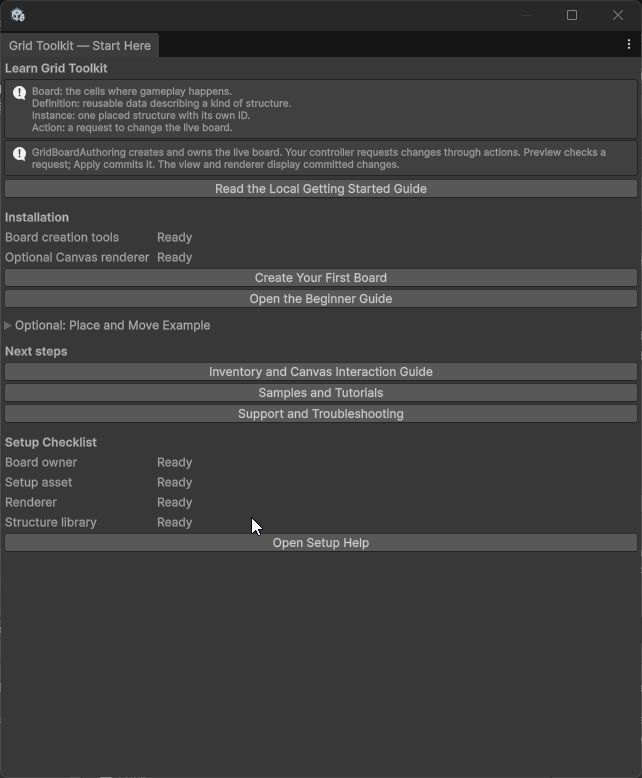
Open Tools > Lost Lily > Grid Toolkit > Start Here, expand Optional: Place and Move Example,
and select Try the Place and Move Example. The wizard selects Playable Starter. Choose an
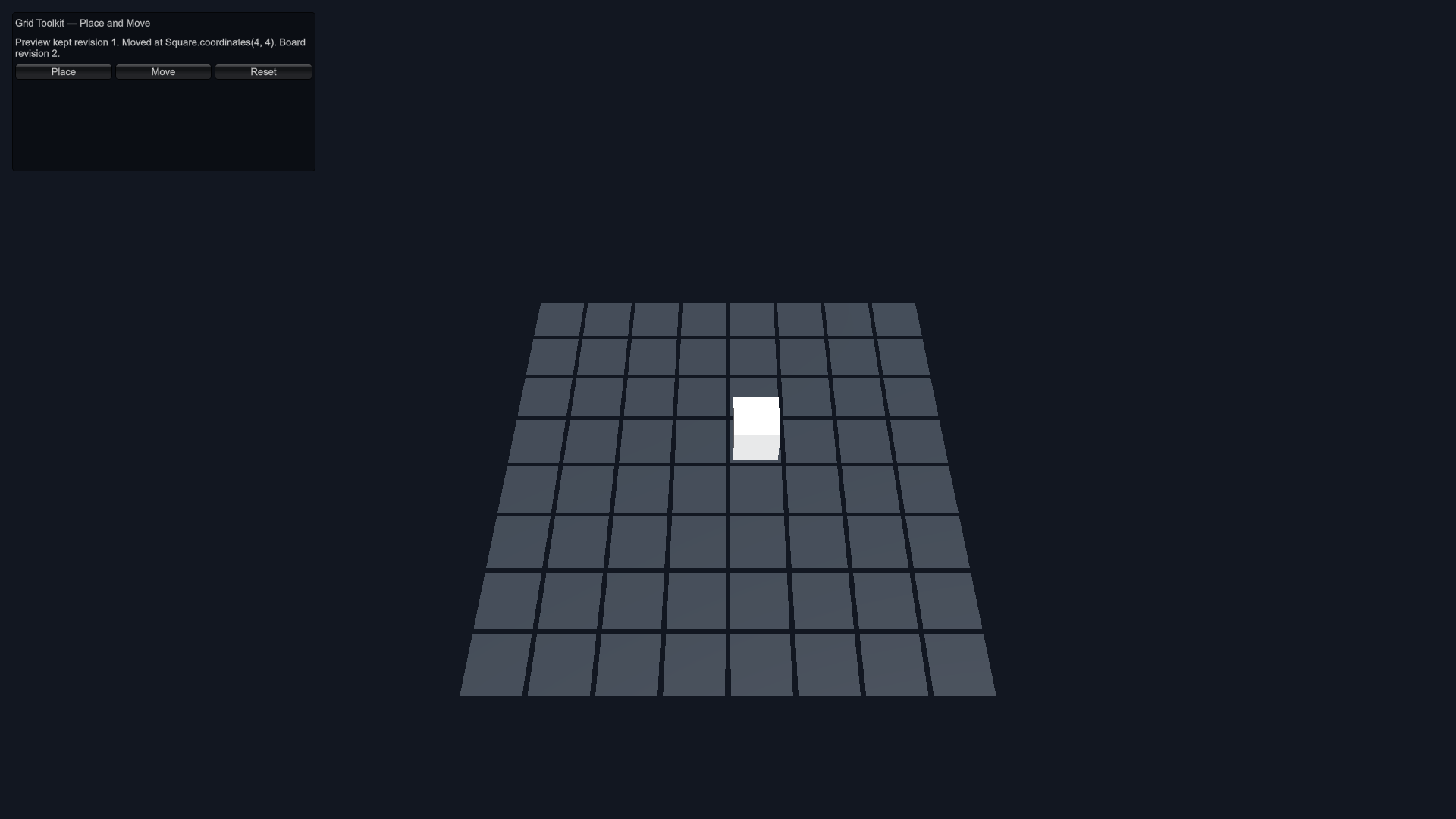
existing folder below Assets, save the new scene, and enter Play Mode. Press Place, Move,
then Reset. The default structure travels from (1, 1) to (4, 4). The 8 by 8 Square board uses
coordinates 0 through 7 on each axis.
The package-local Getting Started.md contains these exercises without needing the HTML site.
1. Find the owner and the reusable data
Select the generated board GameObject and inspect its components and assigned assets.
| Part | Responsibility | What to inspect |
|---|---|---|
| Board asset | Describes the cells and topology. | The authored 8 by 8 dimensions. |
| Structure asset | Describes a reusable footprint, identity, and visual. | The starter's Structure Id and Visual Asset. |
| Structure library | Resolves definitions and connects their authored visuals. | The starter structure entry and the library assigned to the setup and node builder. |
| Setup asset | Collects the board, library, and authored starting contents. | The assets assigned on GridBoardAuthoring. |
GridBoardAuthoring |
Creates and owns the live state. | Build On Awake, readiness, and revision. |
| Starter controller | Turns a button into a public action. | Definition Id, Placement Cell, and Move Cell. |
GridBoardView and renderer |
Observe and display the live state. | The source, renderer, and structure node builder. |
Try: press Place and inspect revision 1. The board asset still describes the same cells.
The live state now contains one instance called starter.instance.
Why: a definition describes a kind of structure. An instance identifies one occurrence on a live board. Several instances can share one definition; give each a distinct instance ID. The starter deliberately uses one fixed instance ID so repeated placement demonstrates rejection.
Check your understanding: which object should dispose the state when this authored board is
destroyed? GridBoardAuthoring, its owner. A controller or view borrows that state. Reset rebuilds
the owned state, so resolve owner.State again for subsequent actions. Code-owned boards have the
same need for one clear owner; see Create and own a board in code.
2. Change a gameplay destination
- Exit Play Mode and select the generated board.
- On Grid Toolkit Playable Starter, set Placement Cell to
(2, 1)and Move Cell to(6, 5). - Enter Play Mode and press Place, then Move.
- Press Move again to return to
(2, 1).
Expected: the structure appears at your placement cell, moves to your move cell, and returns. Each successful action advances revision once. The renderer follows the committed board state.
Why: the controller supplies logical coordinates to GridActions. The view maps the result
into the scene. Choose coordinates and actions in gameplay code; use visual assets to control how
the result looks.
Try another change: outside Play Mode, edit the generated starter prefab's Model appearance.
Re-enter Play Mode and place it again. Appearance and gameplay location have separate authoring
responsibilities. Changing a structure's footprint changes which cells must be available, and the
next action validates the whole footprint.
3. Predict a failure and recover
First press Reset, then Place twice.
Predict: will the second click create another structure or advance the revision?
Expected: the first click creates starter.instance at revision 1. The second is rejected
because that instance ID already exists. Read the Game view diagnostics. The revision stays 1
and the first structure stays in place.
Now press Reset, change Placement Cell to (-1, 1) in the Inspector while playing, and
press Place. The coordinate is outside the board; preview rejects it and revision remains 0.
Change it back to (2, 1) and press Place again. It succeeds at revision 1. Play Mode Inspector
changes are temporary; exit Play Mode to restore your authored values.
Why: preview reads the current state without committing. A failed action leaves the board unchanged. Treat failure as an expected gameplay result: keep the object in place, show the diagnostics, and allow a new target. For example, a red placement ghost can represent rejection.
4. Read the action workflow
In the optional example section of Start Here, select Open the Example Code. Start with Place() and Move() in
GridToolkitPlayableStarter: each chooses a logical target and constructs its own action. Follow
TryGetBoardAndDefinition to see how the current board and definition are resolved, then
PreviewAndApply to see validation, rejection feedback, and the commit. The public entry points are:
| Step | API or value | Purpose |
|---|---|---|
| Resolve the current state | GridBoardAuthoring.State |
Obtain the owner's live board after creation or rebuilding. |
| Resolve the definition | SetupAsset.StructureLibrary.TryGetStructureDefinition |
Use the controller's Definition Id to find the authored structure. |
| Construct a request | GridActions.PlaceStructure or GridActions.MoveStructure |
Express the requested change with a definition, coordinate, and instance ID. |
| Check it | GridActionRunner.Preview |
Ask whether the request is valid without changing revision. |
| Commit it | GridActionRunner.Apply |
Validate against the current state again and commit an accepted action. |
| Explain the result | GridActionResult.Success and FormatDiagnostics() |
Continue after success or explain rejection. |
Apply validates again because other gameplay may have changed the board since preview. A successful
preview is useful feedback, rather than a reservation of cells. A successful Apply publishes the
committed changes; GridBoardView observes them and updates presentation.
Place your first structure contains a complete independently compiled component
and focused excerpts for these steps. When adapting it to a generated starter, use the starter's
actual Definition Id, choose your own instance ID, and use the board owner in your scene.
That example places from Start; attach it to a fresh board or reset before repeating its request.
5. Connect your own controls
Your project chooses how an input becomes a request. A button may supply a configured coordinate; a pointer controller resolves a hit and uses its logical board coordinate. Both then follow the same definition, action, preview, diagnostics, and apply workflow.
To make your first independent controller:
Use the complete component from Place your first structure as a starting point in your own Assets folder.
Remove its automatic
Startmethod. Connect your button's On Click event to its publicPlaceFromButtonmethod, or call that method from your input handler:Excerpt — make the placement workflow callable by a Unity button. Tested using public APIs.
public void PlaceFromButton()
{
    Place();
}
Resolve the current owner state at the time of the request, and use your library's definition ID.
Give each new placed object a distinct instance ID. Keep that ID when moving the same object.
Feed the chosen cell into the action, check the result, and expose rejected results to the player.
Keep subscriptions and temporary feedback in the controller's lifecycle; clear them on disable and reconnect when the board is rebuilt. The owner disposes the live state.
For a move request, keep the placed instance ID and construct
GridActions.MoveStructure(definition, instanceId, coordinate). Use the same preview, diagnostics,
and apply steps. The starter's Place() and Move() methods demonstrate both action factories;
PreviewAndApply contains their shared validation and commit workflow.
Success check: your own control places an instance, another request moves the same ID, and an invalid target leaves the instance where it was. You can explain why the view refreshed without moving a rendered object yourself.
Continue with Resolve board hits, Display action feedback, and Save and restore a board as your game needs them.
6. Use the same model for Inventory and Canvas
Create Inventory Canvas in a separate scene. Repeat the destination and rejection exercises. It uses the same ordinary board, structure library, instance identity, preview, and apply rules. Inventory adds item metadata and per-instance quantities; uGUI adds Canvas presentation and hit mapping. The preset's buttons are a starting controller. Your input code supplies pointer behavior.
Work through Add Inventory to a board, Manage item quantities, and Interact with a uGUI board. Then practise transferring and merging items.
Predict before trying: what happens when a destination cannot accept a transferred item's whole footprint? The operation rejects the transfer and both boards retain their prior state. What owns the temporary drag visual? The presenter; it clears that visual when cancelled or disabled. The accepted logical operation changes the board.
Result
You can identify the board owner, distinguish a definition from an instance, choose a logical target, interpret rejection, and connect your own input to an action. These are the skills to practise in a first-time usability session, alongside reaching the first visible Place and Move.