Configure a World 2D or World 3D renderer
When to use
Use World 2D for a board on Unity's XY plane, where X is horizontal and Y is vertical. Use World 3D for a board on Unity's XZ ground plane, where X is horizontal and Z represents depth. Both choices use the same GridBoardView binding and retained update model.
Before you start
Start with a board setup asset, the board created by the beginner path, or a scene object containing
an unconfigured GridBoardView. The board topology normally supplies the automatic layout. Assign a
custom layout provider only when the built-in mapping is not suitable.
Procedure
Choose the path that matches the current project state.
Create the board and renderer together
- Open Tools > Lost Lily > Grid Toolkit > Create Grid Board....
- Choose the topology, dimensions, and cell size.
- Set Renderer Setup to World 2D or World 3D.
- Choose an asset folder and select Create.
Create a board-view GameObject from an existing setup
- Select the board setup asset.
- In its Inspector, select Create Scene View....
- Choose World 2D or World 3D.
Add a renderer to an existing board view
- Select the GameObject containing
GridBoardView. - Confirm Board Renderer is unassigned.
- Select Configure Renderer Stack....
- Choose World 2D or World 3D.
- When the same object contains
GridBoardAuthoring, select Use Board Authoring State Source if the view is not already connected.
The setup recipe creates the renderer, cell builder, a structure builder appropriate for the setup, and a compatible generated material. It leaves Layout Provider empty so the built-in topology can create the layout automatically.
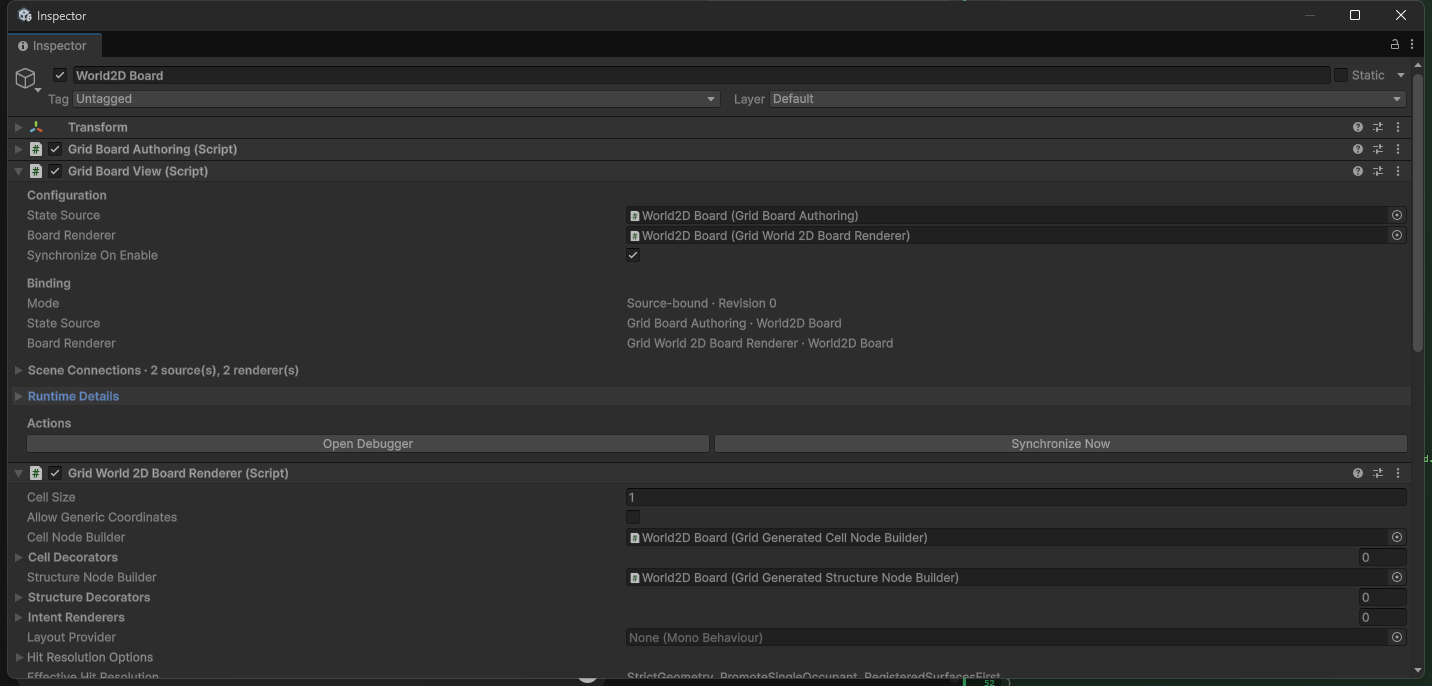
How World 2D presents the board
GridWorld2DBoardRenderer
places visuals on the XY plane. Generated content uses URP Unlit when available and otherwise uses
Sprites/Default. Sprite-backed structures come from structure visual assets; generated definitions
can use GridGeneratedStructureNodeBuilder.
World 2D hits use the active layout and available 2D hit surfaces. Camera projection, sorting, and materials affect presentation but not logical board validity.
How World 3D presents the board
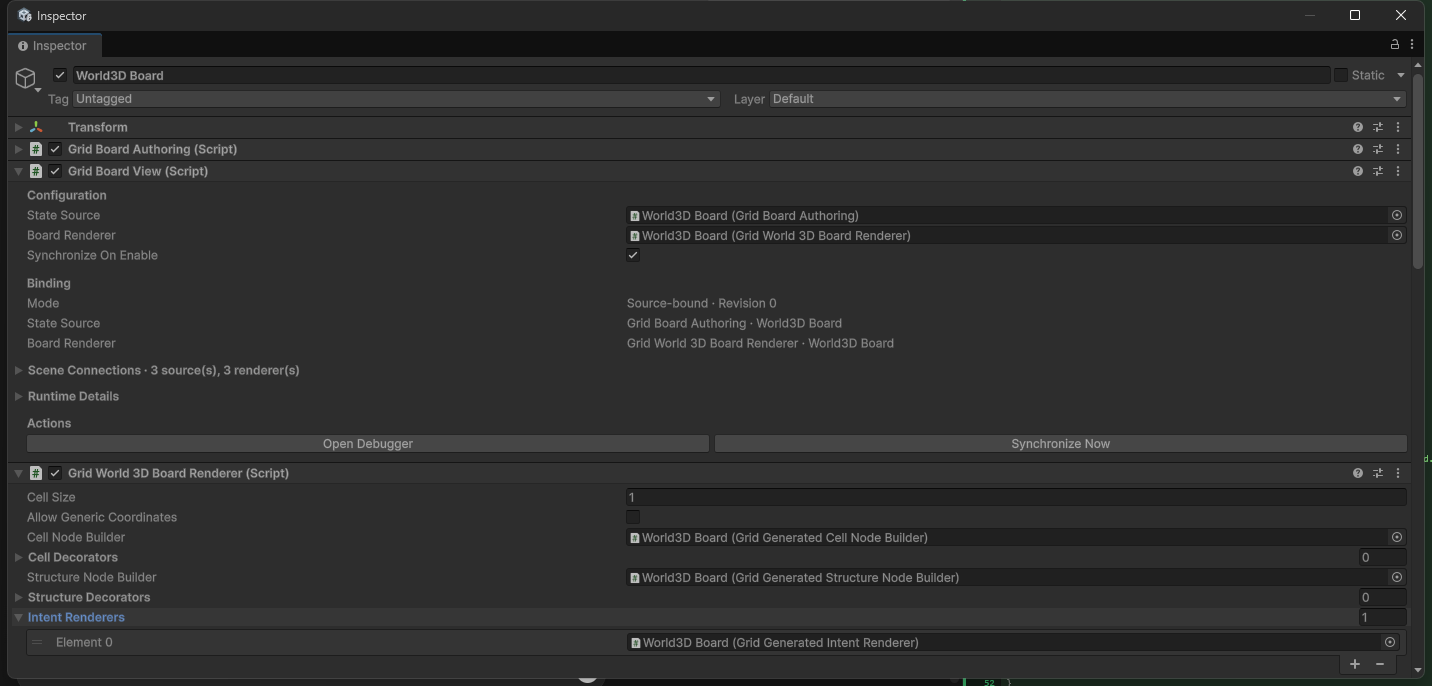
GridWorld3DBoardRenderer places visuals on the XZ plane. Generated content uses URP Lit when available and otherwise uses Standard. Structure libraries can supply prefabs, composite visuals, labels, or generated content. The default recipe also adds a generated intent renderer for hover, selection, and placement feedback.
World 3D can use native hit surfaces for precise prefab or generated-geometry hits and compatible layout fallback hits when native surfaces are unnecessary.
Result
In Play Mode, the GridBoardView Inspector reports a ready renderer and the expected cells appear
in the Scene view. Committed board changes update only the visuals that need refreshing. Layout and
hit resolution return logical grid targets rather than making scene objects the gameplay authority.
Troubleshooting
| Symptom | Check |
|---|---|
| Configure Renderer Stack... is absent | Exit Play Mode and confirm the view does not already have a renderer. |
| No renderer choice appears | Confirm the World 2D or World 3D module and its editor assembly are imported. |
| The renderer cannot create a layout | Use a built-in topology with geometry or assign a compatible custom layout provider. |
| The renderer is ready but creates no cell nodes | Assign a cell node builder whose content capabilities match the selected renderer. |
| Structures do not appear | Confirm the structure builder matches the setup's generated or structure-library workflow. |
| Precise hits fail | Configure the matching 2D or 3D hit surfaces, or use compatible layout fallback hits. |