Use Inventory across three topologies
What this teaches
These three scenes run one Inventory workflow on square, hexagonal, and triangular boards. A GridInventoryDragSession keeps the grabbed footprint cell anchored while public Inventory actions handle move, rotate, transfer, sort, quantity, and stack operations.
Open and run
Menu paths:
- Tools > Lost Lily > Grid Toolkit > Samples > Open > Inventory > Square
- Tools > Lost Lily > Grid Toolkit > Samples > Open > Inventory > Hex Variant
- Tools > Lost Lily > Grid Toolkit > Samples > Open > Inventory > Triangle Variant
The catalog display names are Inventory Square, Inventory Hex, and Inventory Triangle. Inventory is a Stable-tier module; check the tier on each API page before depending on a contract.
Open one topology and enter Play Mode. Press-drag an item, press R while dragging to rotate, and release over a green preview to drop. Use Sort, Reset, or Cancel as labelled.
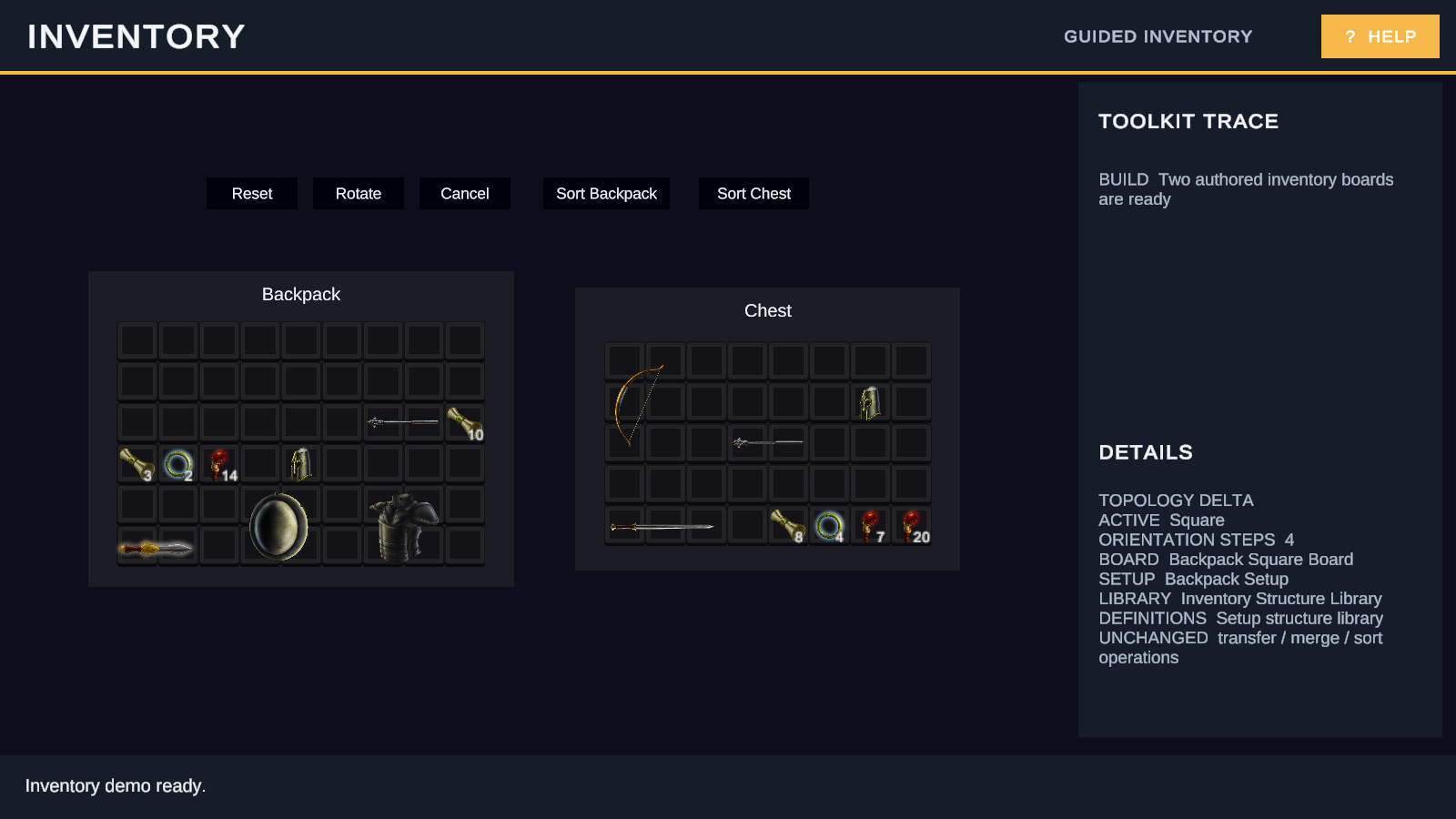
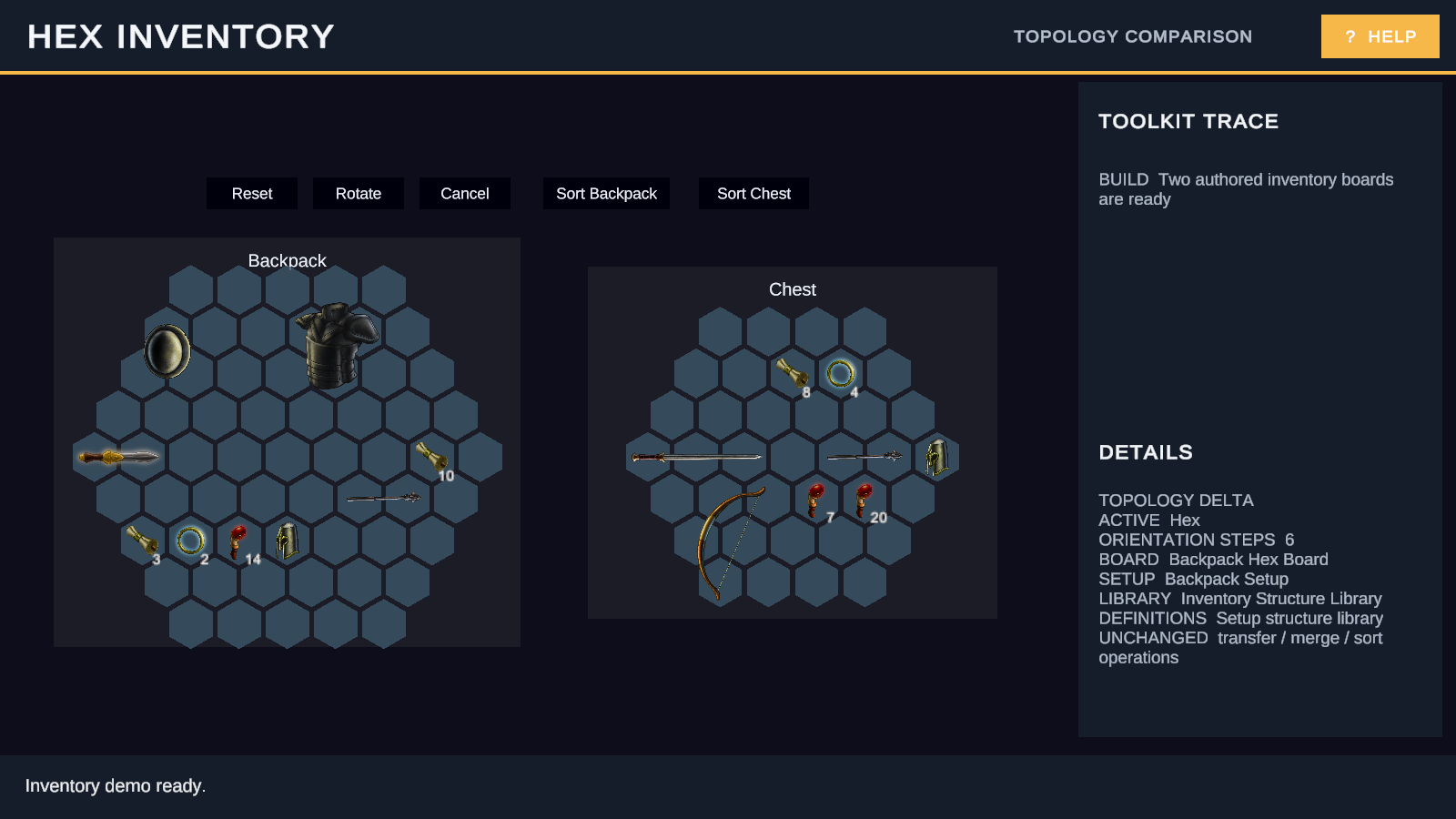
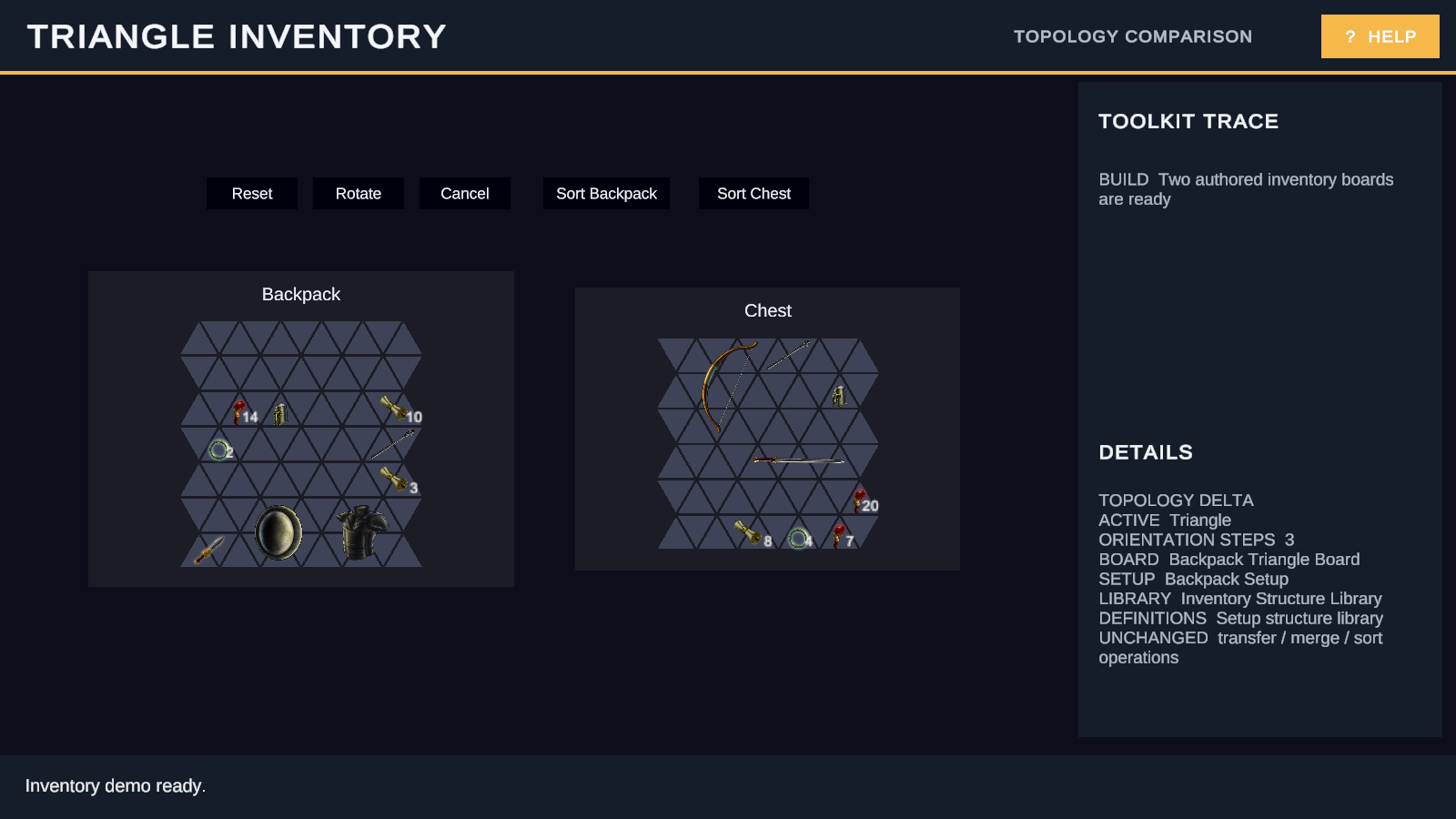
Try it
- Press-drag an item within its current board.
- Press R during the drag and watch the footprint preview rotate around the grabbed cell.
- Drop on a green target.
- Drag a compatible stack onto another stack and confirm quantities merge.
- Transfer an item to the other board, then use Sort.
- Repeat the workflow in the other two topology scenes.
Checkpoint
Valid drops move or transfer the item atomically; compatible stacks merge quantities. Invalid drops leave both boards unchanged and report why. Cancel ends the active drag. Reset restores the starting inventories.
How it works
| Scene part | Public system | Responsibility |
|---|---|---|
| Board binding | Ordinary board state and view | Connects each inventory surface to its live state. |
| Drag session | GridInventoryDragSession |
Retains source, item, anchor, and orientation during interaction. |
| Move action | GridInventoryMoveItemAction | Moves an item within one board. |
| Transfer operation | GridInventoryTransferItemOperation | Coordinates an atomic cross-board transfer. |
| Quantity renderer | Inventory visualization | Displays stack quantity without owning inventory state. |
Try another variation
In a duplicated scene, change an item's footprint, stack limit, or starting quantity, then repeat the same test in another topology.
Troubleshooting
| Symptom | Fix |
|---|---|
| Dragging never begins. | Press on an item, not an empty cell, and confirm the Input System and uGUI dependencies are resolved. |
| A drop stays invalid after rotation. | Keep every footprint cell inside the target board and free of occupancy. |
| Stacks do not merge. | Confirm item definition, stack compatibility, and capacity match. |
Related
- Understand Inventory
- Add Inventory to a board in Unity
- Transfer and merge items
- Structures, footprints, layers, and occupancy
- GridInventoryDragSession
- GridInventoryMoveItemAction
- GridInventoryTransferItemOperation
Next sample
Continue with Build a module socket network.